
Scan-to-email is the copier feature people notice least until it breaks. You put a document on the glass, press a button, and it shows up in someone's inbox. Behind that button, the copier signs in to your email system the same way a person would, with a username and a password, and sends the scan as an ordinary message.
That sign-in method is being switched off. Google has already done most of it, Microsoft has a date, and copiers that are still signing in with a password are going to stop scanning. This guide explains what is changing, what the replacement is, and how the switch goes on a Canon so you know what to expect.
What is actually changing
Both Google and Microsoft are retiring what they call basic authentication: a device presenting a stored password to send mail. The reason is that a password typed into a copier is a password sitting in a copier, and copiers are rarely patched, rarely monitored, and often reachable from the office network by anyone who plugs in.
Google Workspace
Google turned off plain password sign-in for third-party apps and devices on Workspace accounts in 2025. What still works is an app password: a separate 16-character code that you generate for one device, which only exists if 2-Step Verification is on for that account. Google describes app passwords as an exception for devices that cannot do anything better. They work today, and Google has not published an end date for them, but the direction is clear and the recommended method is OAuth.
Microsoft 365
Microsoft has announced that basic authentication for sending mail through Exchange Online will be disabled at the end of December 2026. Administrators will be able to turn it back on temporarily, and Microsoft has said it will announce the final removal date in the second half of 2027. This date has moved several times, so treat it as the latest, not the last. If your office is on Microsoft 365 and your copier scans with a username and password, you have a deadline.
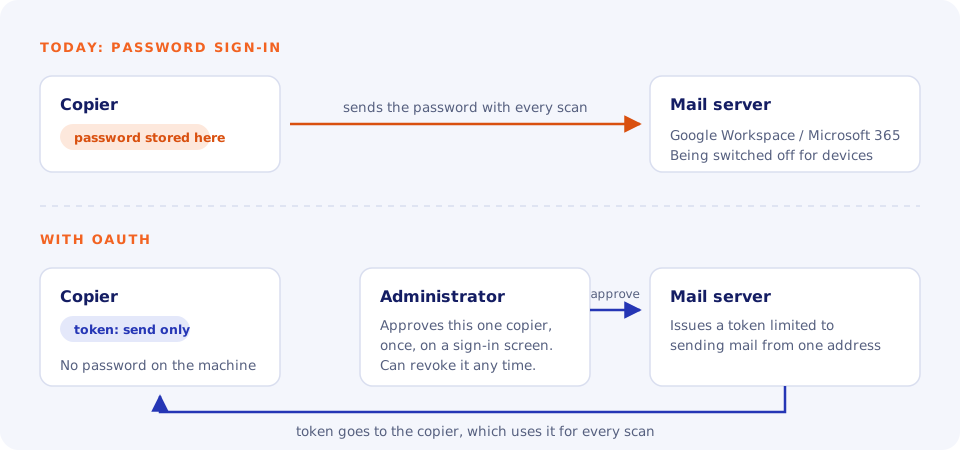
What OAuth is, in plain terms
OAuth is the method where, instead of giving a device your password, you sign in once on a screen, approve that specific device, and the email system hands the device a token. The token only lets it do the one thing it was approved for, in this case send mail from one address. It can be revoked from the admin console without changing anyone's password, and if the copier is ever sold, scrapped or compromised, the token goes with it and nothing else is exposed.
For a copier that means: no password typed into the machine, no shared secret to rotate, and a line in your admin console that says exactly which device is allowed to send.
Which copiers can do it
This is where it gets uneven. Current Canon imageRUNNER ADVANCE DX and imageFORCE machines support OAuth 2.0 for both Google Workspace and Microsoft 365 in their SMTP settings. Older Canon models vary by firmware: many imageRUNNER ADVANCE machines from before the DX line can do it once they are updated, and the option does not appear in the menus until they are. Other brands are at different stages, and some older machines will never get it.
If a machine cannot do OAuth, the options are an app password on Google (while they last), a mail relay service that accepts a password from the copier and does OAuth on its behalf, or replacing the machine. Only the first is free, and only the third is permanent.
How the switch goes on a Canon
On an imageRUNNER ADVANCE, this is the sequence. Budget an hour; most of it is the firmware update.
- Check the firmware first. The OAuth option in the send settings does not appear until the machine is on a version that supports it. Update before you touch anything else. This is the step that trips people up: without the update, the option simply is not there and it looks like the machine cannot do it.
- Create or pick the sending account. Use a dedicated mailbox for scans rather than a person's account, so nobody's departure breaks the copier. Make sure 2-Step Verification is on for it.
- On the copier, switch the authentication method to OAuth 2.0 and choose Google or Microsoft. The machine shows a code and a short URL.
- On a computer, open that URL, sign in as the scanning account, enter the code, and approve. That is the handshake. The copier receives its token and reports that it is signed in.
- Send a test scan. Then delete the old app password from the account's security settings, so the retired method is actually retired.
If several copiers share one sending account
Switching an account's authentication rules changes it for every device that uses it. If three copiers scan through the same mailbox, you cannot move one to OAuth and leave the other two on a password. Either every machine on that account moves together, or the ones you are not ready to touch get their own account first. Plan the order before you start, and give each location its own sending account while you are at it; it makes the next change easier too.
What to do this month
- Find out how each copier signs in. On a Canon, it is in the send or email settings under authentication. If it says anything other than OAuth, it is on the retiring method.
- If you are on Microsoft 365, put the December 2026 date on the calendar and work backwards.
- If you are on Google Workspace, confirm the scanning account has 2-Step Verification and is using an app password rather than the account password, which already does not work.
- Check whether each machine's firmware supports OAuth, and update the ones that do.
The copier side of this is ours to handle on machines we lease, and we will tell you plainly whether a machine can do OAuth or not. The email side, the admin console, 2-Step Verification and account settings, belongs with whoever manages your email, and that is deliberate: we are a copier company, not an IT company. Where an office has nobody in that role, we work with IT partners we trust and can point you to them. Not sure where your machines stand? Reach out through the support form and we will help you work out the next step.